
Sales History and Save a Sale POS Functions
When you are creating a new sale for a member, you will have access to their purchasing history.
The View History button and feature for POS allows 2 separate functions for the user.
You will see the View History button when you add a new sale.

This features allows you to do 2 functions.
- View the last 10 retail sales and regenerate them to make purchases faster.
- Save the sale to be paid for later.
Last 10 Retail Sales
This feature grabs the last 10 purchases made by the member and allows them to be quickly regenerated for faster sales on repeat purchases.
Click Copy Sale next to the sale you wish to copy.
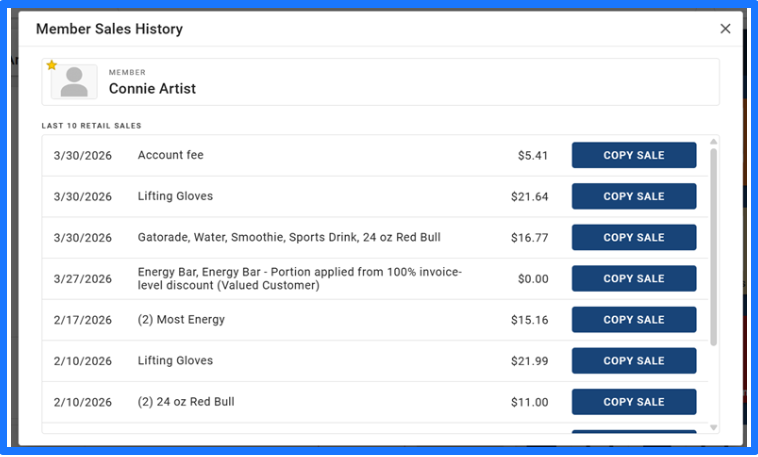
The previous purchase will repopulate.
Keep in mind that Items that had coupons or discounts will need to be reapplied. Also, any item that has been removed from your inventory since the sale will not be available.

Save Sale Feature
Everyone has either experienced or seen someone forget their cash and ask to be right back. With that in mind, the saved sale allows for 1 sale to be saved before payment is collected per member.
With the items in the cart click the Save button at the bottom of the screen.

A new window will pop up asking if you are sure you wish to save this order for later? Click Save for Later to proceed.
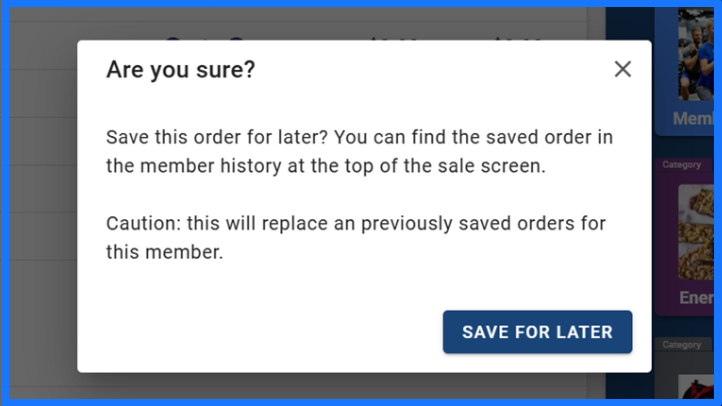
A confirmation message will appear when saved.

To pull the sale back up when the member is ready to complete it, click the Add button under the members photo, and select Sale.

Once the POS screen loads click the history button.
You will see the saved sale now present above the 10 Historical sales below.
Click Finish to complete the saved invoice, or you can Delete by pressing the trash can.

Then, when ready, click Pay and collect payment.
