User Management Controls
The new User Management interface allows you to filter users by status, including active, inactive, and pending users. The filter is located in the lower-left corner of the Users screen.
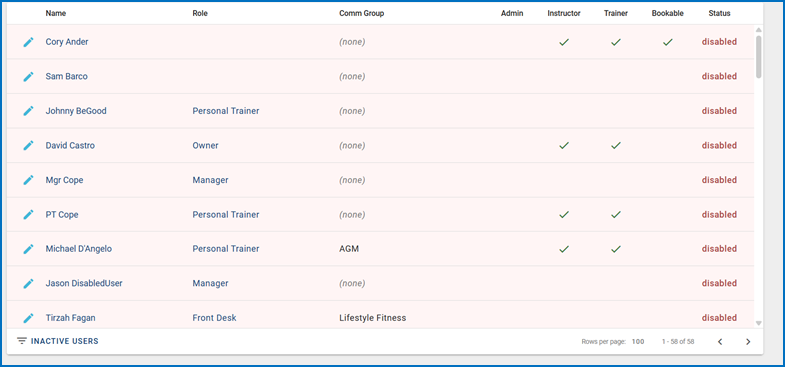
By default, All Users is selected. Inactive or disabled users are highlighted in red.
Active Users
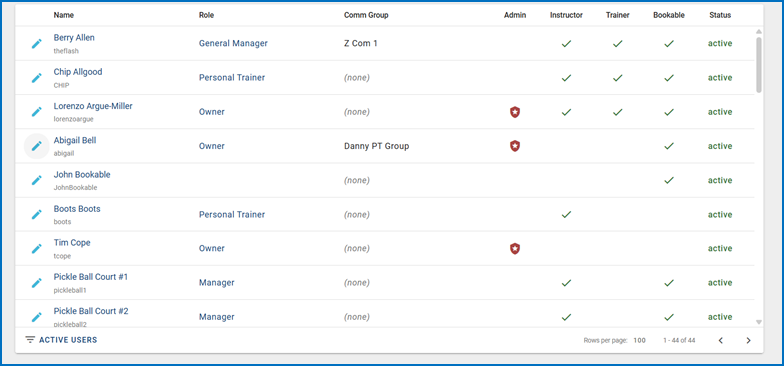
Active Users displays all registered users who have completed the registration process and created their passwords.
To edit a user’s roles or permissions after the account has been created, click the blue pencil icon to the left of the user’s name.
Inactive Users
Inactive Users displays all disabled user accounts that may need to be reactivated.
To reactivate a user, click the blue pencil icon next to the user’s name. In the pop-up window, click Save and Activate.

Pending Users
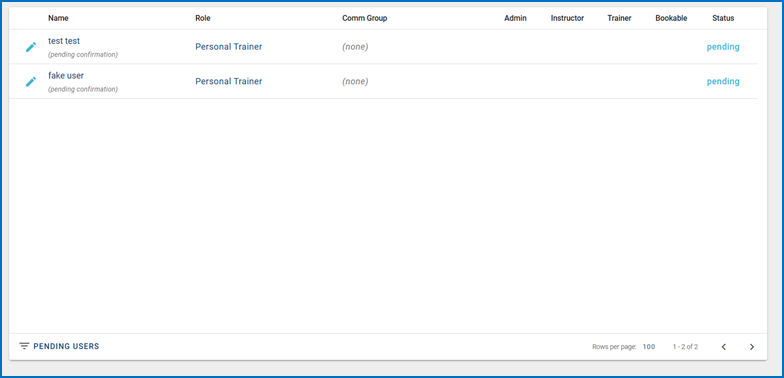
Pending Users displays all users who have been created but have not yet completed the registration process.
To send an additional registration invitation, click the blue pencil icon next to the pending user’s account.