
How to Install, Update and Restart Insight Access
Insight Access version 4 is a new version with updated features for the Digital Keytag system and updated monitoring for check-ins. Follow these steps to install or update Insight Access:
Follow these steps:
- Shut down the current version of Insight Access (File > Exit)
- To Download and install the current version go to Applications:
- Find Insight Access under available applications and click Download.
- Find your Downloads and click on the file.
- Select Install/Yes to ALL dialog window boxes shown during this process
1. Shut down the current version of Insight Access (File > Exit)
2. To Download and install the current version go to Applications:

- Find Insight Access under available applications and click Download.

- Find your Downloads and click on the file.

- Select Install/Yes to ALL dialog window boxes shown during this process:


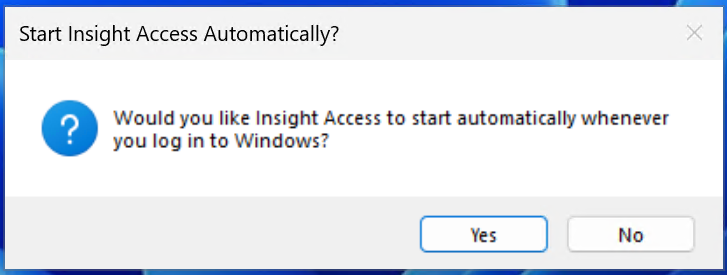
- You can see the Insight Access icon on the bottom of your screen. If you right click on it, you will see a menu with options.
- Drag Insight Access services icon down to dock (from drop arrow in bottom right corner)

The taskbar icon should have a green dot. A green dot indicates all systems functioning, the Windows service is running, and all configured doors are up and running.

Congratulations! You have successfully installed or upgraded Insight Access.
Troubleshooting:
- If you see an Error Box - Stating "Setup Error"

Solution:
- Download and install Microsoft .NET Desktop Runtime (version 8.x.x)
- https://download.visualstudio.microsoft.com/download/pr/bb581716-4cca-466e-9857-512e2371734b/5fe261422a7305171866fd7812d0976f/windowsdesktop-runtime-8.0.7-win-x64.exe
- After installing, retry the Insight Access installer
If you are not getting that error, but something is not working right, try this:
Uninstall
(Apps > Add or Remove Programs > Insight Access > Uninstall)
- From your Search field on bottom of Windows desktop, enter Apps.
- Click Add or Remove Programs
- Locate Insight Access from list of installed apps
- Right-click to select Uninstall
- Locate Insight Access from list of installed apps
- Click Add or Remove Programs

To Update Insight Access
There will be times that Insight Access will need to be updated. To update Insight Access the Windows computer will need to be power cycled and restarted. To restart Windows, ensure all other programs outside of Insight Access have been saved and closed if need be.
- Navigate to the Windows Start Button.

- On the new window click on the power button, and select restart.

-
Once the computer reboots, Insight Access will re-launch provided it was registered and configured properly to start when Windows boots up. You will see this screen, which will ensure Insight Access is running the most current version.

Restart Insight Access
To exit and restart Insight Access please follow these instructions:
- With Insight Access open, navigate to file and select Exit.

- Click Ok on Are you sure?

- Once closed Insight Access can be re-opened in two ways.
3a. The first and most direct would be to double click on the Access Desktop icon that was created when Insight Access was installed and registered the first time, located on your desktop.

3b. If you are having difficulty locating the icon, you can also search windows for the program. In the Window's search bar next to the Start Button, type in Access Desktop and hit enter. The program will launch.

The Insight Access blue launch screen will load.

Once it is complete checking access services, configuration, retrieving settings and ensuring current version is installed, the Insight Access Panel will be displayed.
