
Refunding and Voiding in the Invoice system
You may encounter situations where you will need to issue a full refund on a purchase, or a partial refund on one or more items on a single invoice. You can also void or zero out an account balance. In this article, we’ll provide step-by-step instructions on how to execute each of these scenarios.
Transactions more than 3 months old are not eligible for a refund through Gym Insight. You will need to contact your processor or complete a refund directly with the member via check or cash.
Refunds
A refund is a transaction in which the customer is reimbursed or credited for a payment they have made. Refunds can only be partial if certain items will not be returned. Reasons for refunds can include:
- Cancelation of a membership
- Billing Errors
- Dissatisfaction with a product or service
Voids
A void is a transaction in which a payment is canceled before it's processed (on the same day that the charge was made or before while it is still past due). Voids apply to the entire amount of the transaction and can be performed for various reasons, such as:
- Accidental duplicate transactions
- A customer's change of mind
- Mistakes in the payment amount
Steps to Perform a Refund:
1. Access your member’s account and locate the transaction you want to refund.
2. Verify the transaction details, including the amount, payment method, and member information.
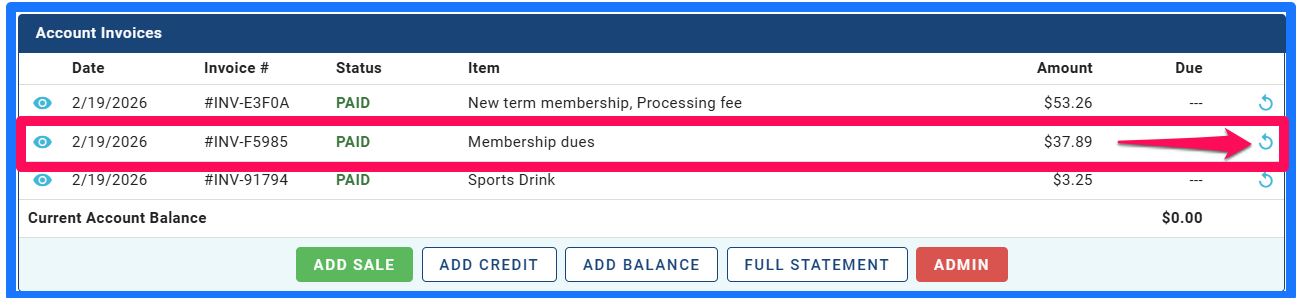
3. Select the reverse circulating arrow at the end of transaction line to issue a refund.
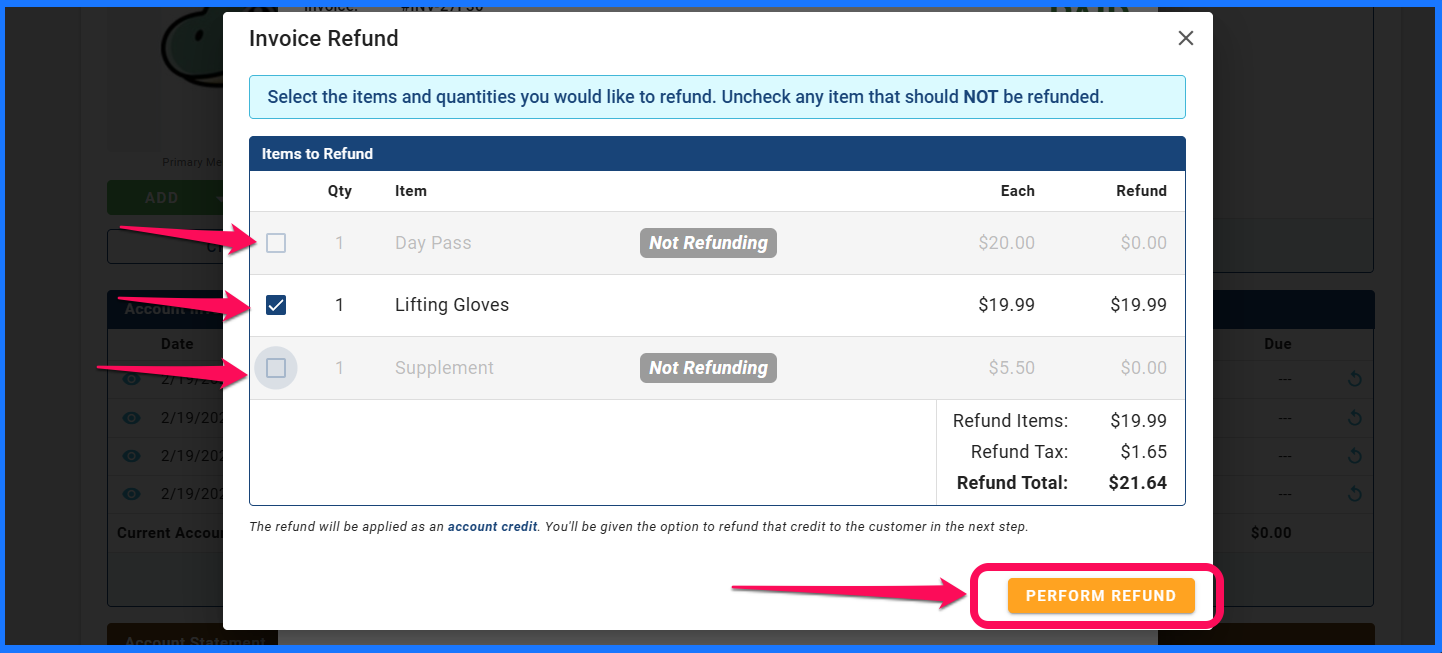
- To issue a partial refund, deselect the items that are not being returned.
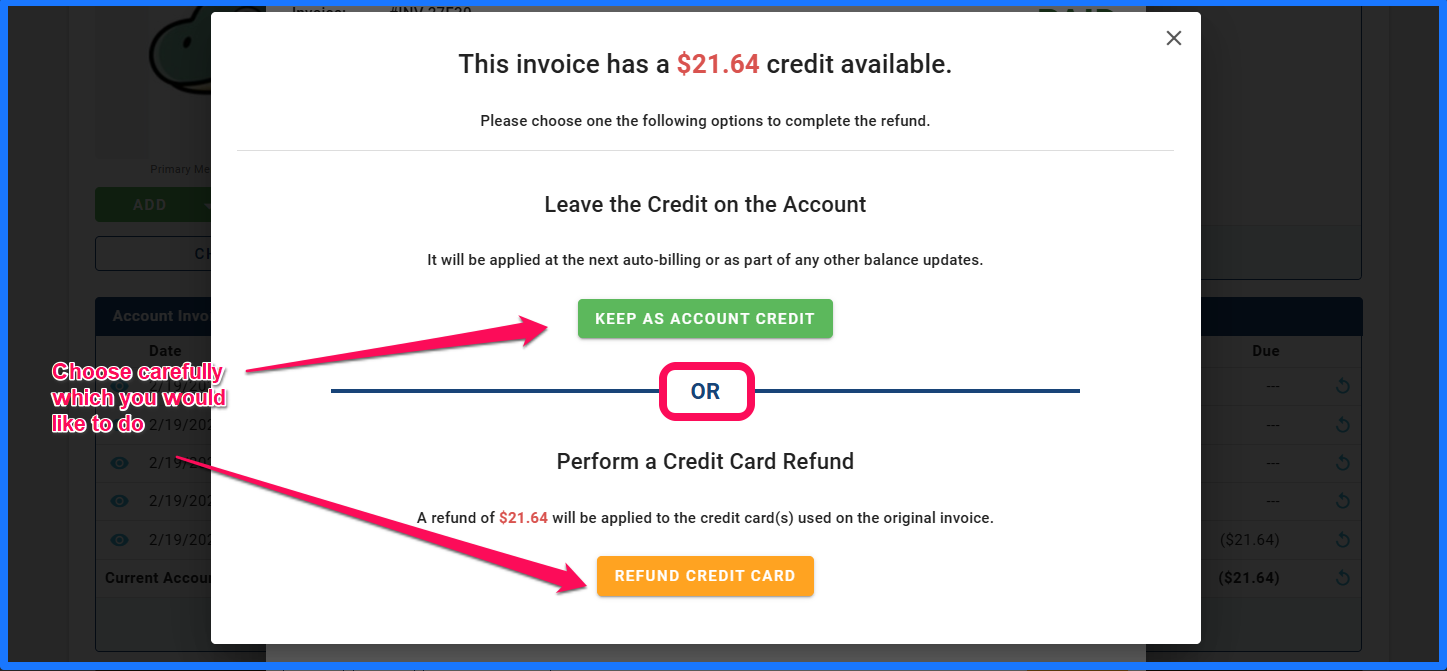
- After you verify that is what you wish to refund, another window will populate to have you choose how the credit is to be dealt with: either kept as an account credit or refund to the method of payment.
- Once completed, you will see an additional invoice showing the refund or credit. Whichever you chose.
To Void a transaction that has already been processed in Gym Insight, but it not fully settled with the merchant processor, follow these same steps. If it is a same day refund, it will be considered a void and drop off the member's bank statement.
If there is a past due balance you wish to void follow these steps:
- Access your member’s account and locate the outstanding transaction you want to void.
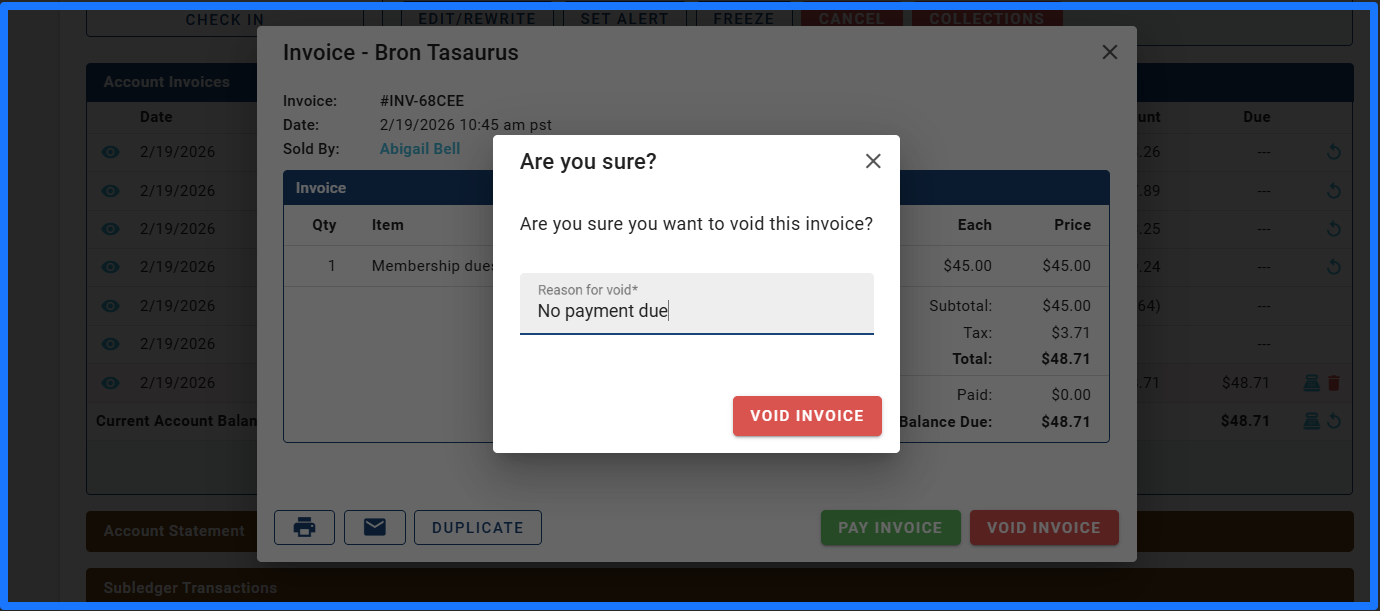
- Select the red trashcan to the right of the invoice.

- The system will load a window asking Are you sure? And requiring a reason be inserted for the void.
Reach out to Customer Service if you have any questions regarding this process. We are
happy to help.