
Multiple Payment Methods on an Account
This is a fantastic feature that will help reduce declines and allows your members to pay with different payment methods.
If you or your member would like to have that additional payment method on their account, follow these steps (Only the primary account holder can edit payment methods):
You can have the Primary Member enter their alternate payment method directly in the app!
- Edit Profile
- Add Payment Method
- Choose which card is the default and if it is shared with any secondary members.
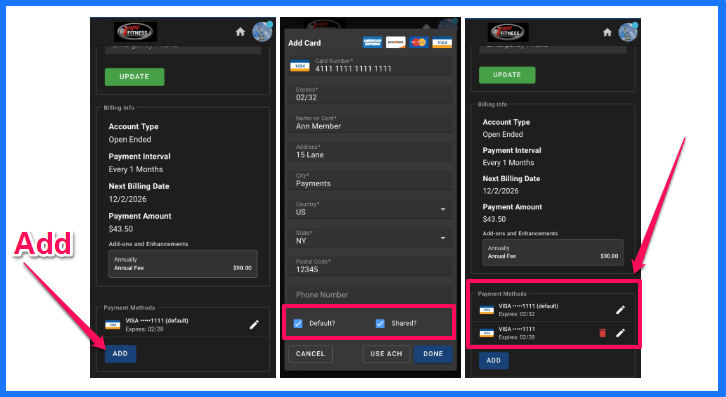
Sharing the payment with the Secondary only applies to the members app functions. If you share the payment method, then the secondary member can pay for class reservations with that payment method. If not, they cannot use that payment method for any app purchases.
You can alternatively add that payment method for them.
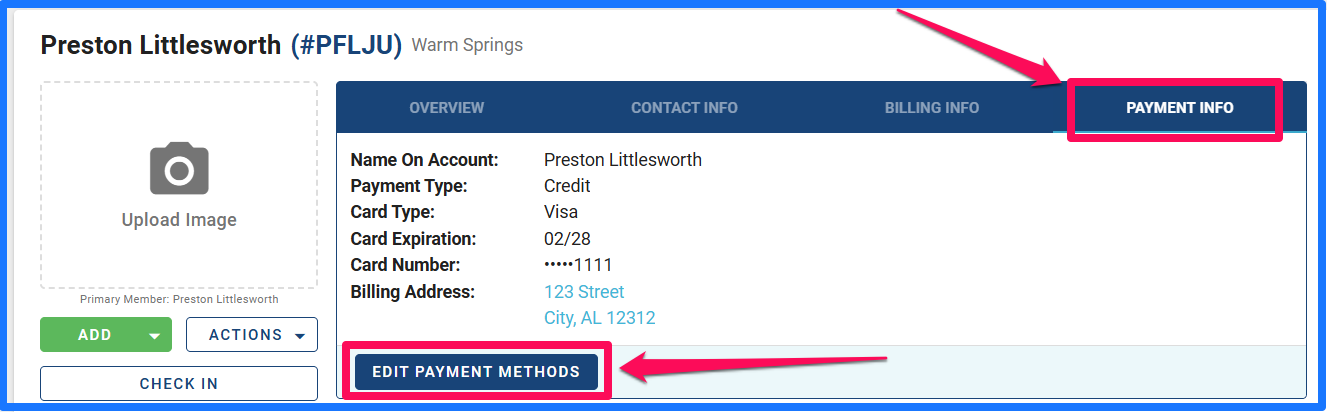
Go to their account and click on Payment Info, then choose Edit Payment Methods.
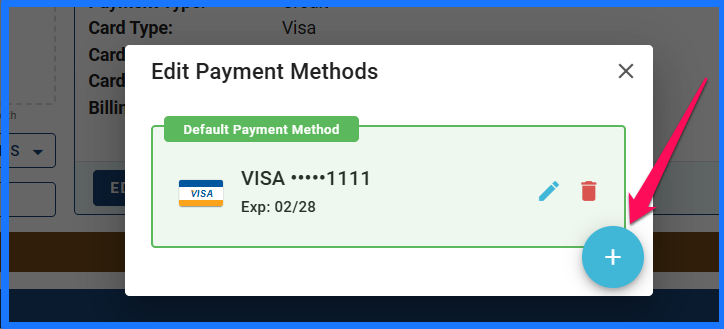
Use the Blue Plus button to add the additional payment method.
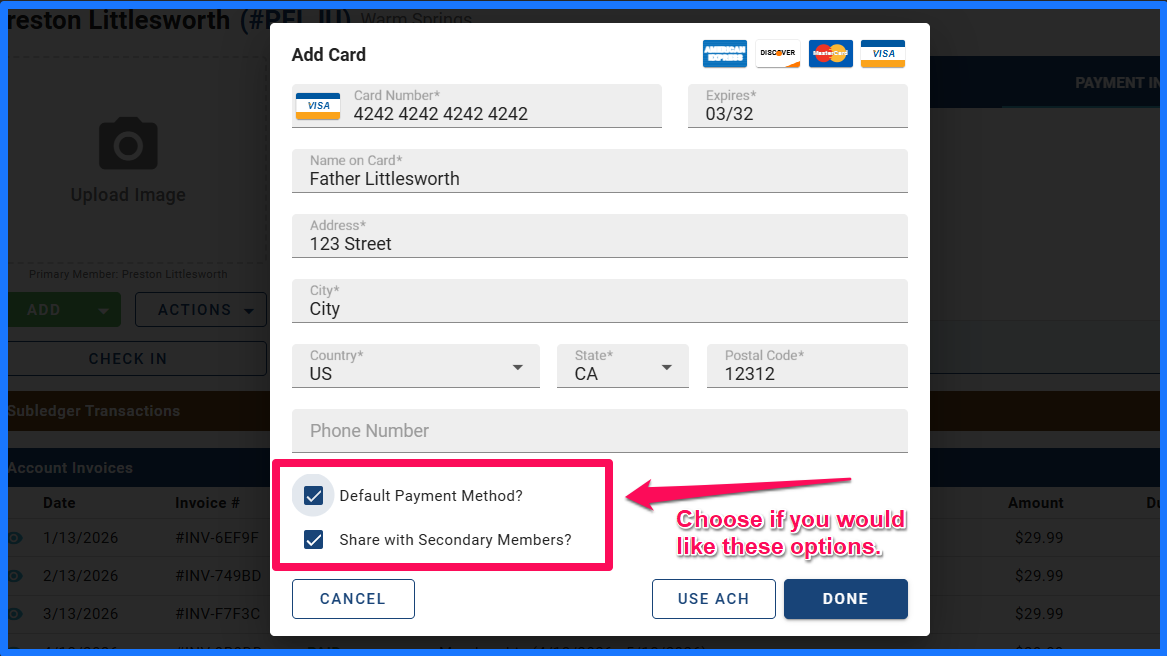
Choose if you would like this new payment method to be the new default method, and if you would also like to share this method for any secondary members to be able to use as well.
You now have two payment methods on file!
If you see a transaction decline, you can try to charge with the other payment method!
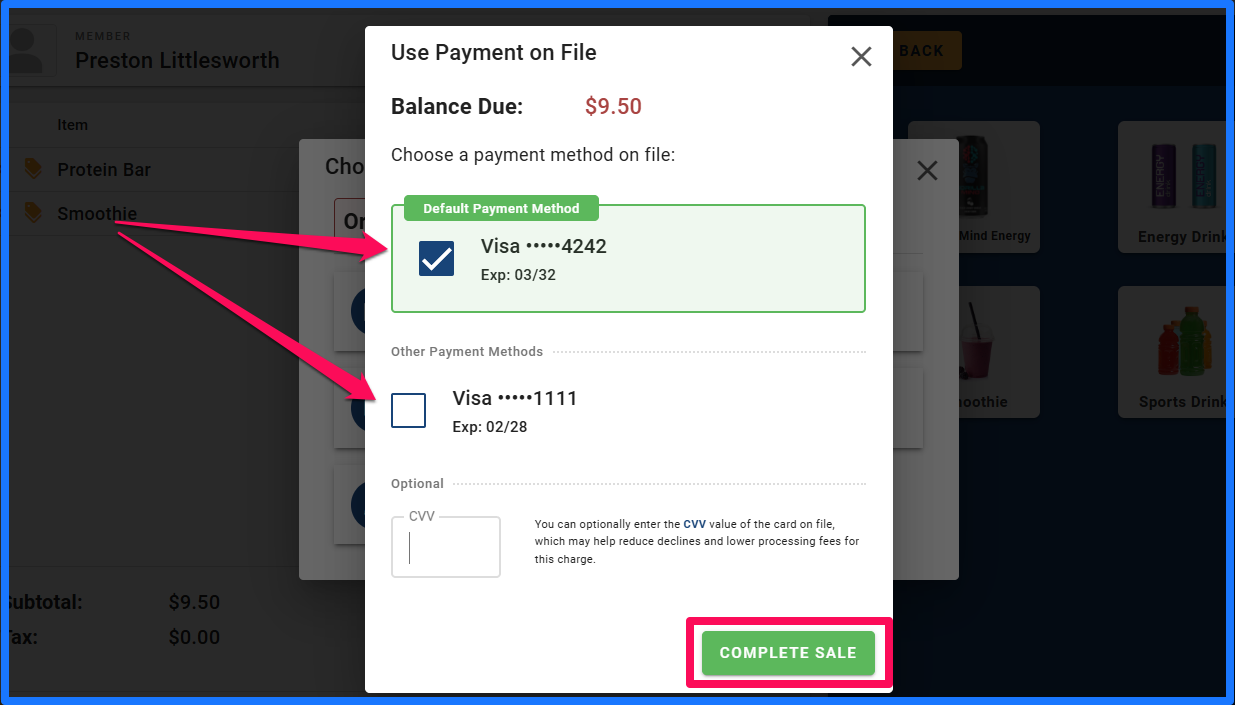
When you are adding a sale, you can choose which payment method you would like to charge.
Add the sale as you normally would and when you choose the payment method on file, you will see an option to use the default or choose the other method.
Remember that you can always reach out to customer support if you have any questions about this.