
Controllable Device Status Guide
Thanks for choosing our Insight Access Door System. This quick guide explains what each device status means and what you should do when you see it.
🟢 Green Light Status – Online & Reporting
Your door controller is online and communicating properly with Gym Insight through Insight Access.
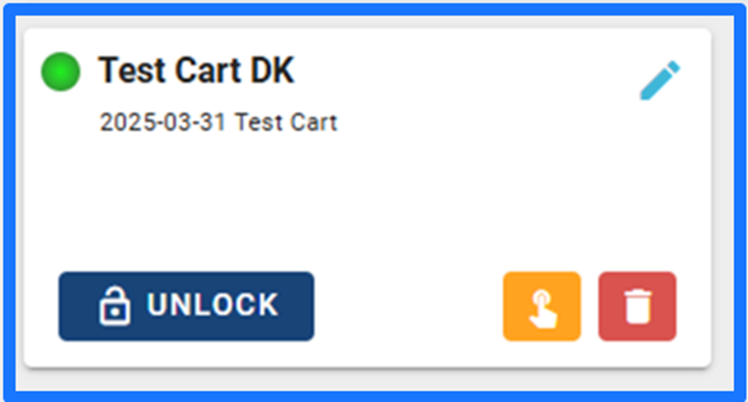
What works in this status:
- Member scans
- Remote Unlock
- Force Unlock
Remote Unlock Options
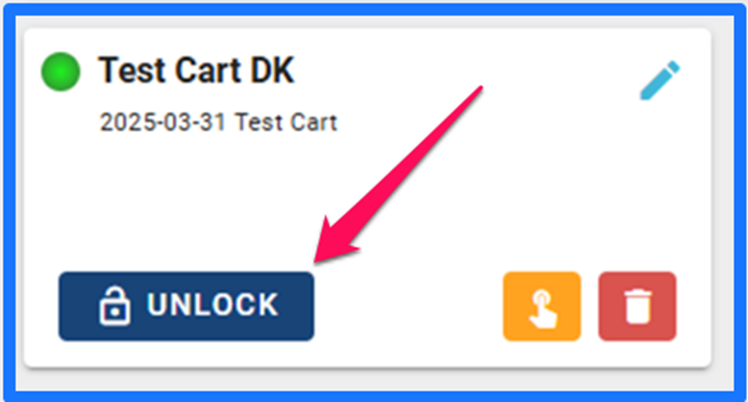
Unlock
- Unlocks the door for 5 seconds
- Works like a valid member scan
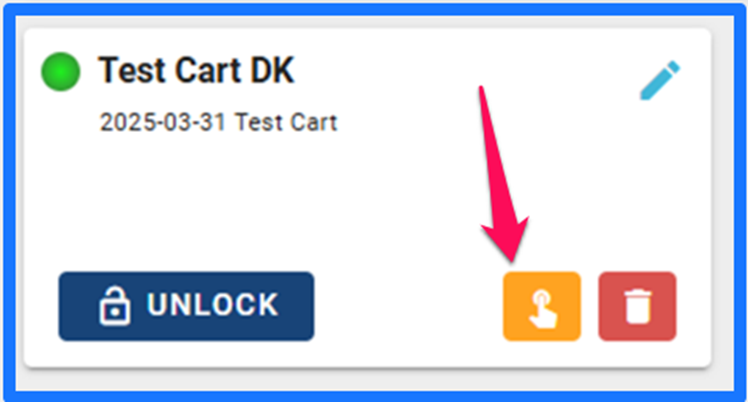
Force Unlock
- Keeps the door unlocked continuously
- Stays unlocked until you click Force Unlock again
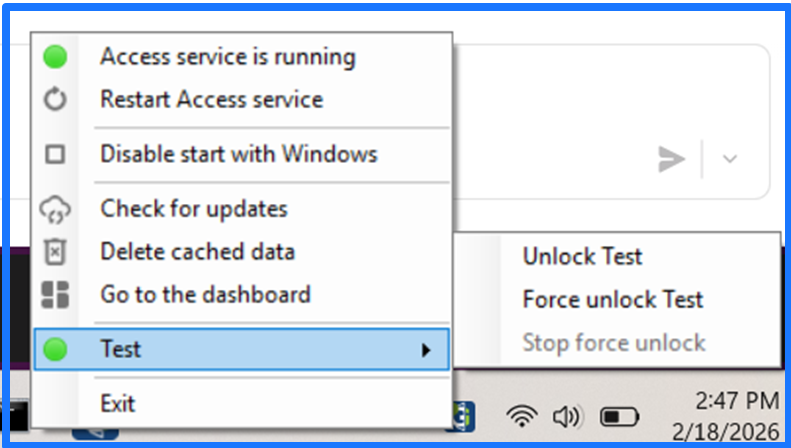
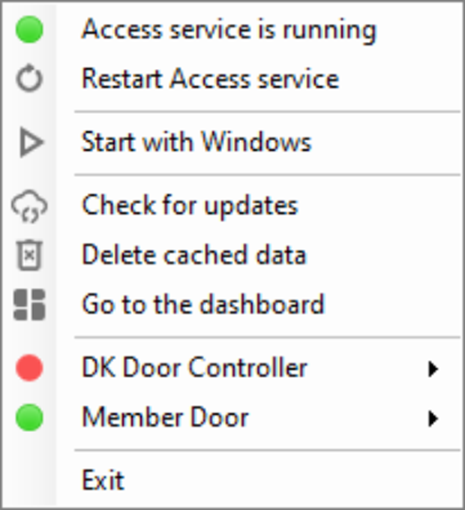
If you are on the computer that runs your door controller, you can also right-click the Insight Access tray icon (bottom-right of your computer screen) to access these options (without logging into Gym Insight).
🟡 Yellow Light Status – Force Unlock Active
Force Unlock is currently enabled.
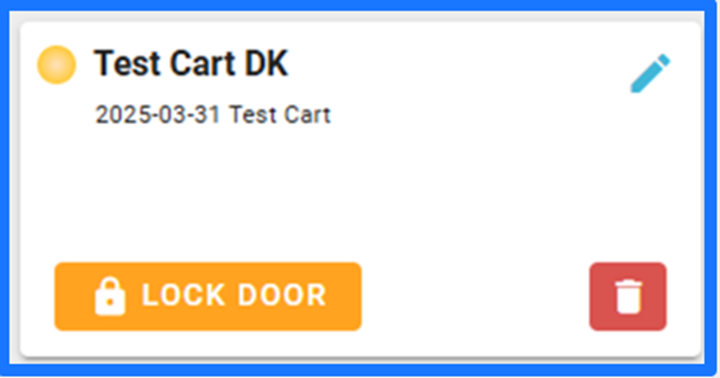
What’s happening:
- The door remains unlocked
- The green light changes to yellow while Force Unlock is active
🔴 Red Light Status – Offline / Not Communicating
The controller is offline and not functioning properly.
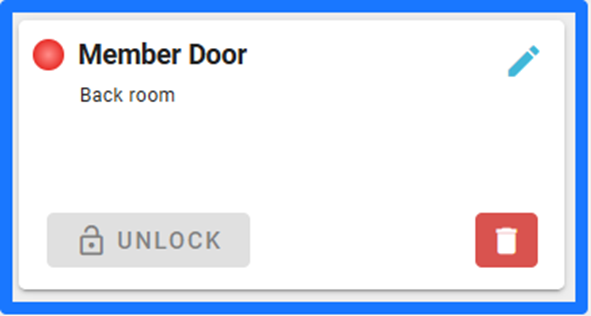
What to expect:
- The door may allow limited scans
- No proper communication with Gym Insight
- May stop working completely
Next Step: Power-cycle the access system devices
- Door router (TP-Link)
- Restart PC
Contact Gym Insight Support for assistance.
⚪ Grey Light Status – Not Recognized by Computer
The controller is not being recognized by the computer running Insight Access.
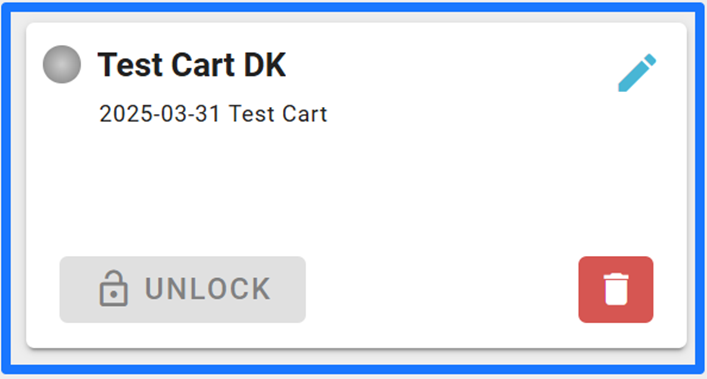
Check the following:
- Verify the controller has power
- Confirm cables are securely connected
- Restart the computer running Insight Access
If it still appears grey:
- You may need to de-register and re-register Insight Access
- The device may need to be re-added to Insight Access
If unsure, reach out to support for help.
🔴 Red Dot on Insight Access Tray Icon
If you see a red dot on the Insight Access tray icon, it usually means:
-
The Windows Access Service has stopped
OR
- One or more doors are disconnected

How to Fix:
- Right-click the Insight Access tray icon
- If Access service is stopped, click Restart Access service.
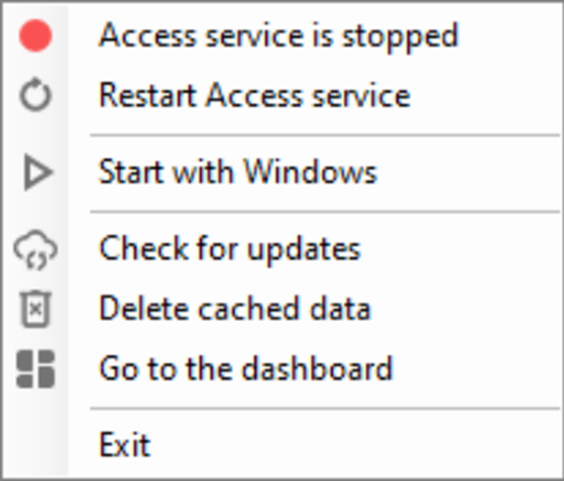
If the issue continues after restarting, contact support for fast assistance.
If a door controller has a red dot, please reach out to customer support for fast and efficient care.
When to Contact Support
Reach out to Gym Insight Support if:
- Your device remains red or grey
- Exiting and restarting Insight Access does not fix the issue
- Doors are not unlocking as expected
- You’re unsure what status you’re seeing
We’re here to help keep your doors running smoothly.