Troubleshooting Digital Keytags
If the digital key displayed in the app is not scanning. please use this guide to help troubleshoot what could be causing this problem.
- Verify that the scanner is scanning items
- This can be tested by scanning a different digital key or any bar code to verify that the scanner is properly functioning.
- Ensure that the app is properly loading the Digital Key.
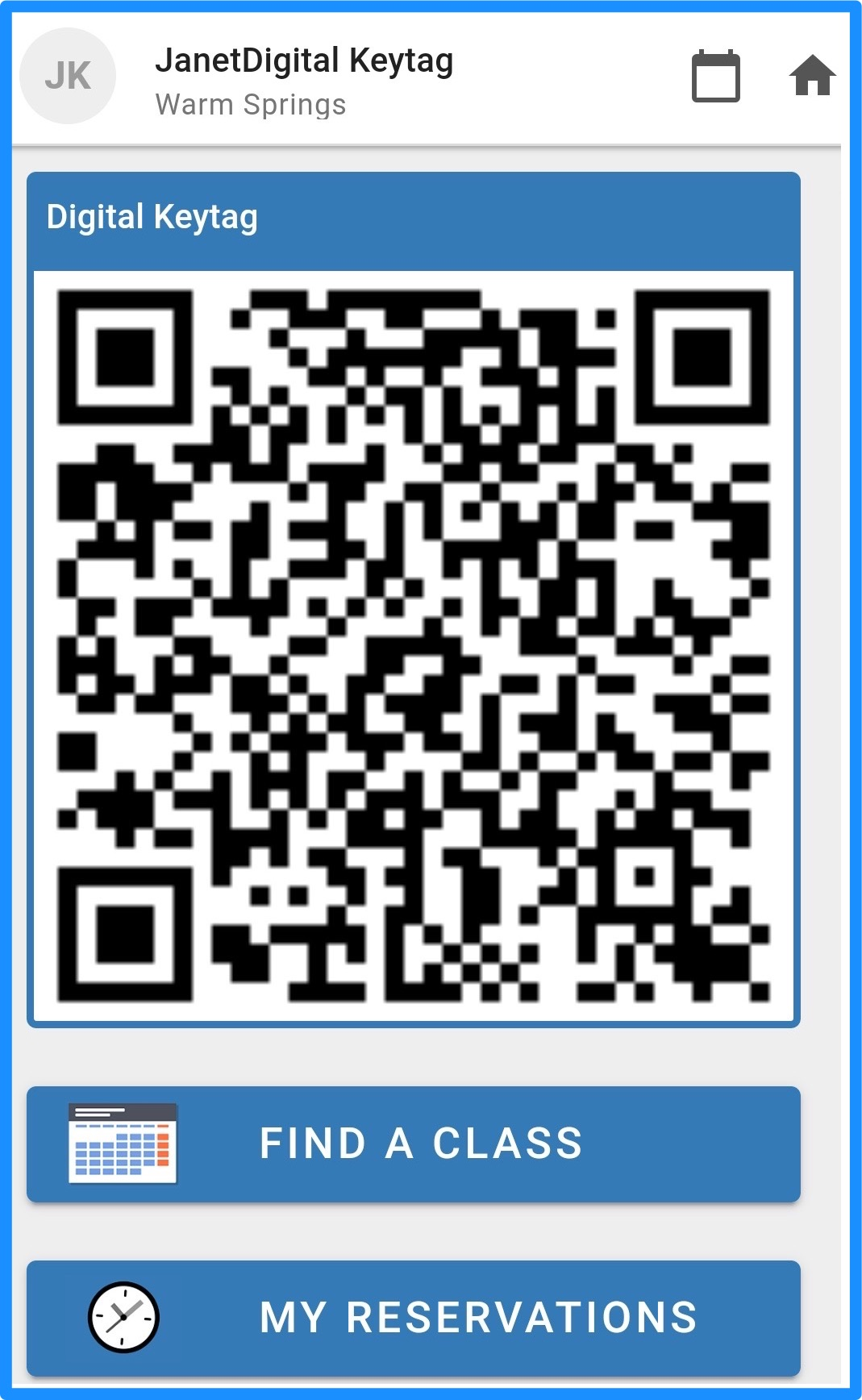
- Ensure the screen is not covered with a screen protector or glare reducer.
- Ensure the brightness for the device is set to maximum.
- For IOS
- Go to Settings > Display & Brightness.
- Drag the slider to the far right.
- For Android
- Open Settings: Tap the Settings gear icon.
- Go to Display: Scroll down and tap on Display (or Display & Brightness).
- Adjust: Find the brightness slider and drag it to the far right.
- Verify that device does not have High contrast mode turned on.
- For IOS
- Open the Settings app on your iPhone.
- Scroll down and tap on Accessibility.
- Tap on Display & Text Size.
- Find the "Increase Contrast" toggle and switch it off.
- If "Increase Contrast" is not present use the search bar for settings.
- Search for contrast
- Contrast will now be displayed in Accessibility.
- For Android
- Open your phone's Settings app.
- Tap on Accessibility.
- Look for Display size and text (or similar, like "Display & Text Size").
- Toggle off High-contrast text,
- Adjust white point value.
- For IOS
- Open the Settings app.
- Tap Accessibility.
- Tap Display & Text Size.
- Scroll to the bottom and toggle Reduce White Point on
- Use the slider that appears to adjust the intensity (from where it is set% to 100%)
- If this fails move slider to 25%
- For Android
- Go to Settings > Accessibility.
- Look for Display & Text Size
- Find and enable Reduce White Point or Extra Dim (may be under Advanced or a shortcut).
- Use the slider to adjust the intensity
- or Visibility Enhancements.
That should take care of it.
If you are still having a problem, please give us a call 855-367-4967.

